
HI-RES
Hi-res playback on Windows 10
- 01
When using an external audio device like a USB-DAC, first connect the device to the computer.
- 02
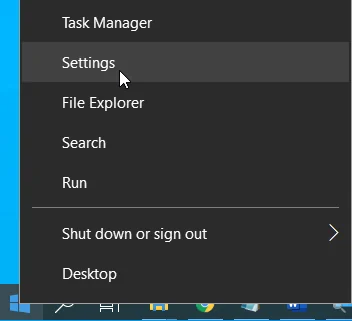
Open [Settings] by right-clicking the [Start] button.
- 03
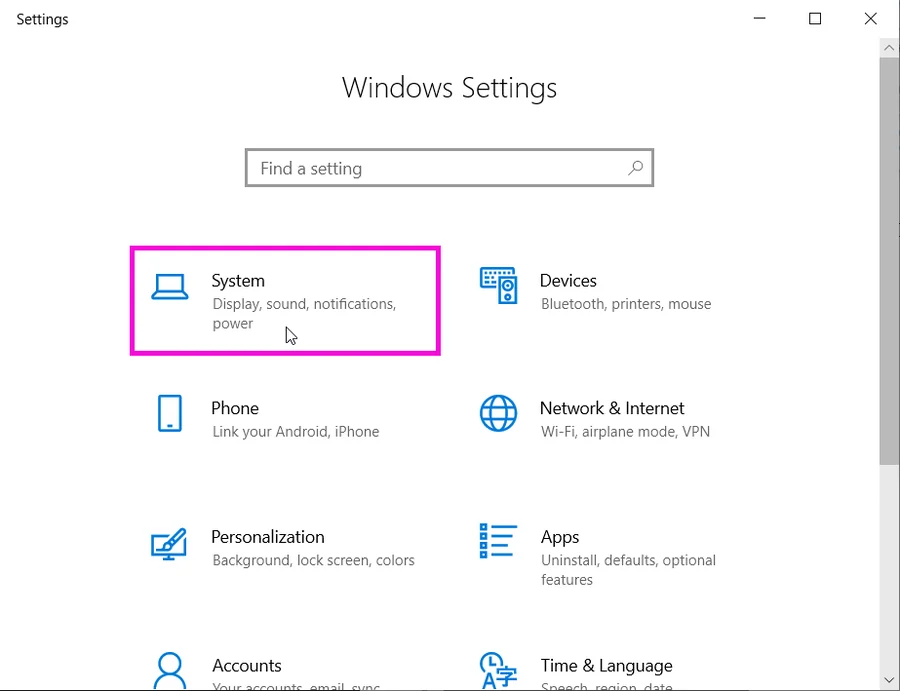
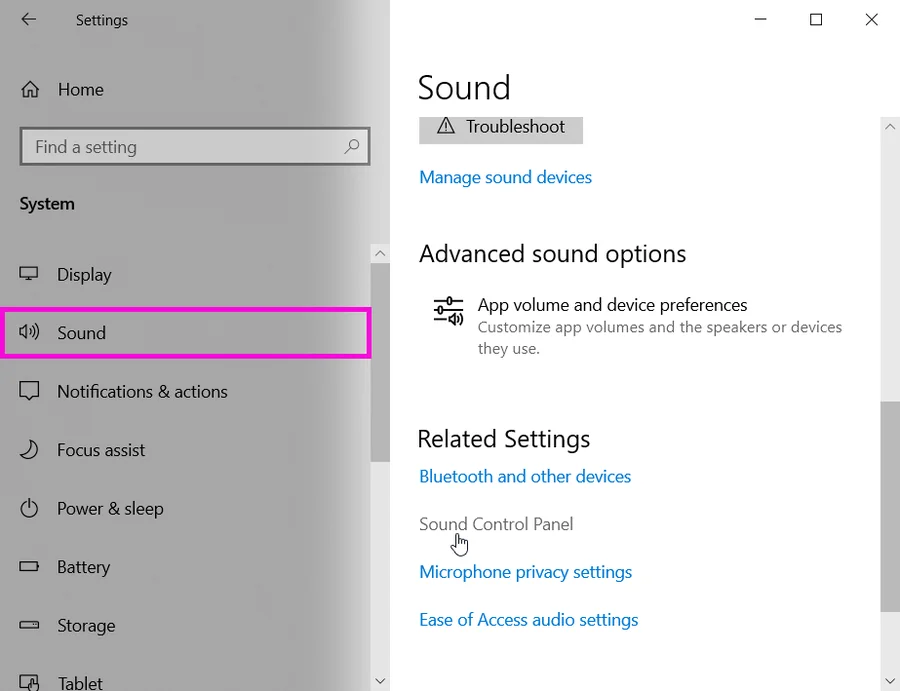
Go to [System] → [Sound] → [Sound Control Panel]
Choose your device
- 04
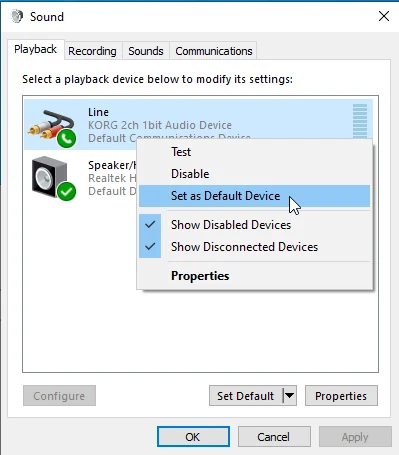
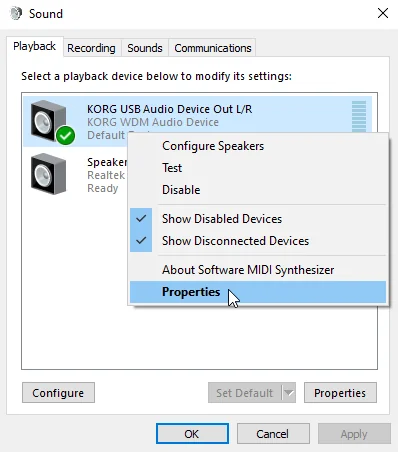
Under the [Playback] tab, make sure that the “KORG WDM Audio Device” is shown. Right-click on the “KORG WDM Audio Device” and select [Set as Default Device] if it isn’t already set (if a check mark is shown on the device, this is already set).
- 05
Right-click on the “KORG WDM Audio Device” again, and go to [Properties].
- 06
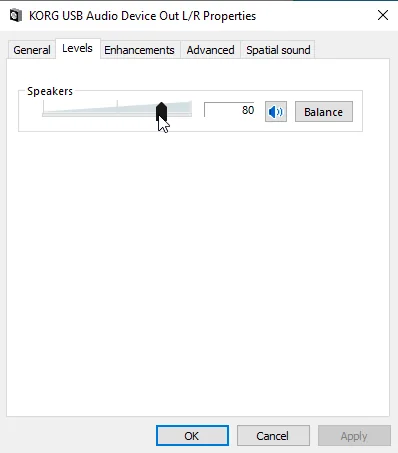
From the audio quality standpoint, it is best to set the level at 100 in the [Levels] tab. If your audio device does not allow volume control, however, set the appropriate level here. Select [OK] and close the properties window.
- 07
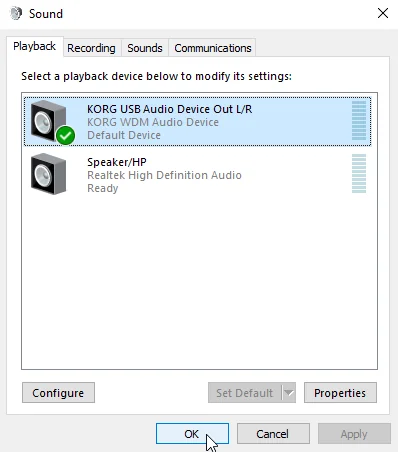
Press [OK] and close the sound control panel.
- 08
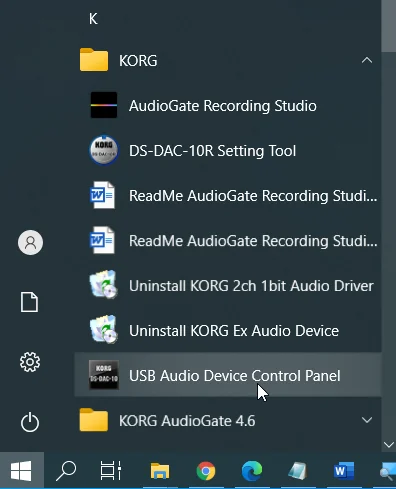
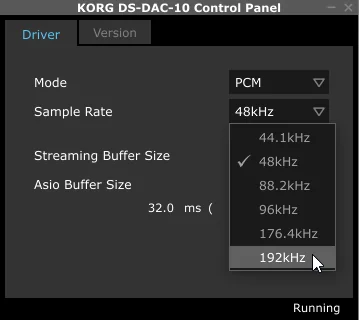
Press the [Start] button and navigate to [KORG] → [USB Audio Device Control Panel] from the program list.
- 09
Select [PCM] at the Mode tab and set the Sample Rate to match the content.
Hi-res / Windows
- Windows 10
- Windows 11