
SURROUND
Auro-3D setup on macOS
- 01
Connect a Mac to an HDMI supported device such as an AV receiver. If your Mac has no HDMI port, an HDMI adapter is needed (see the links below). It is highly recommended to use Apple’s official/certified products especially for hi-res and surround sound playback.
- 02
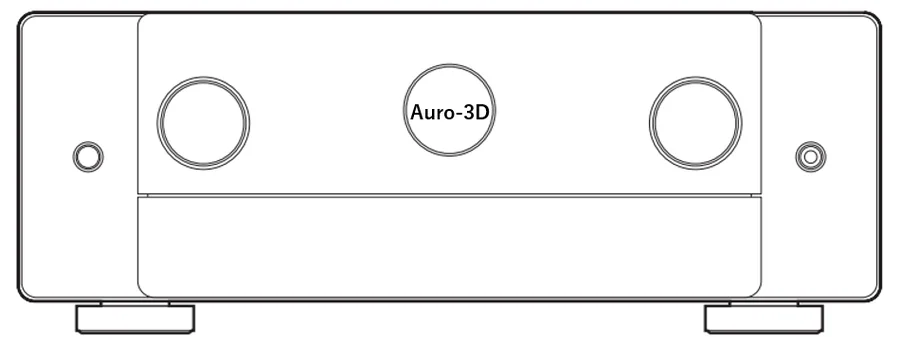
On the AV receiver, select the Auro-3D mode.
- ※How to operate the receiver differs by model. Please refer to its owner’s manual.
- 03
Go to [Applications] > [Utilities] > [Audio MIDI Setup] and open the [Audio Device] setting window. (If the Audio Device window is hidden, go to [Window] in the menu bar at the top of the screen and click [Show Audio Device].)
- 04
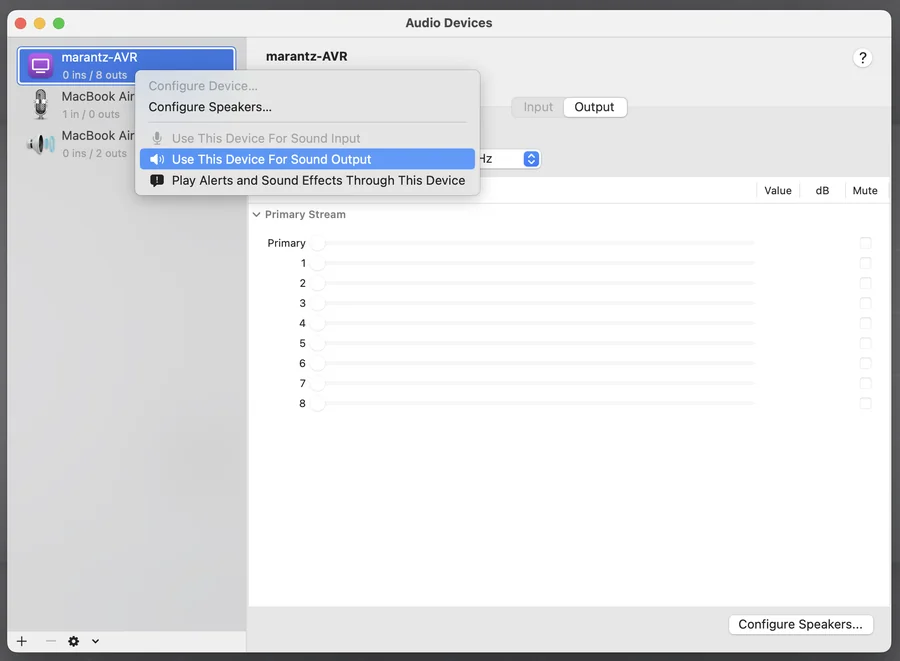
Make sure that the device from (1) is shown on the left side. Right-click on the device and select [Use This Device for Sound Output].
- 05
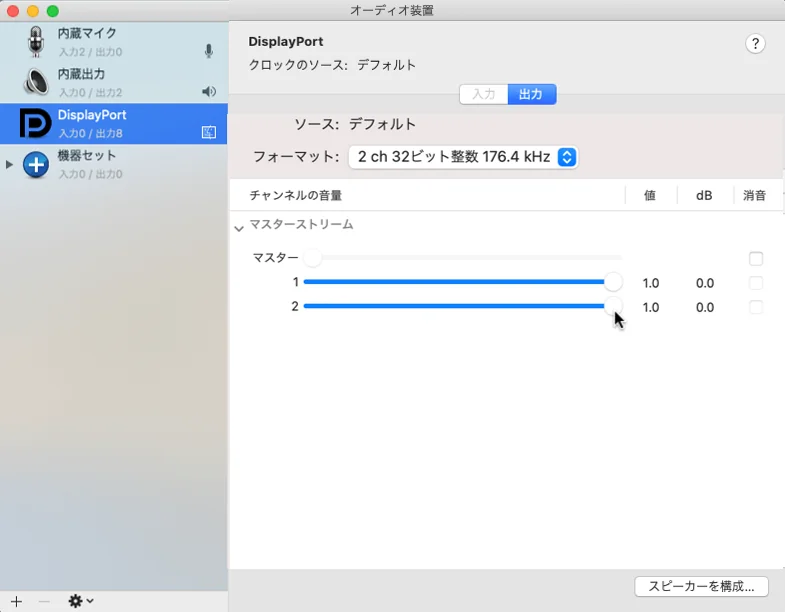
Set all of the channel volume to the maximum 1.0.
- 06
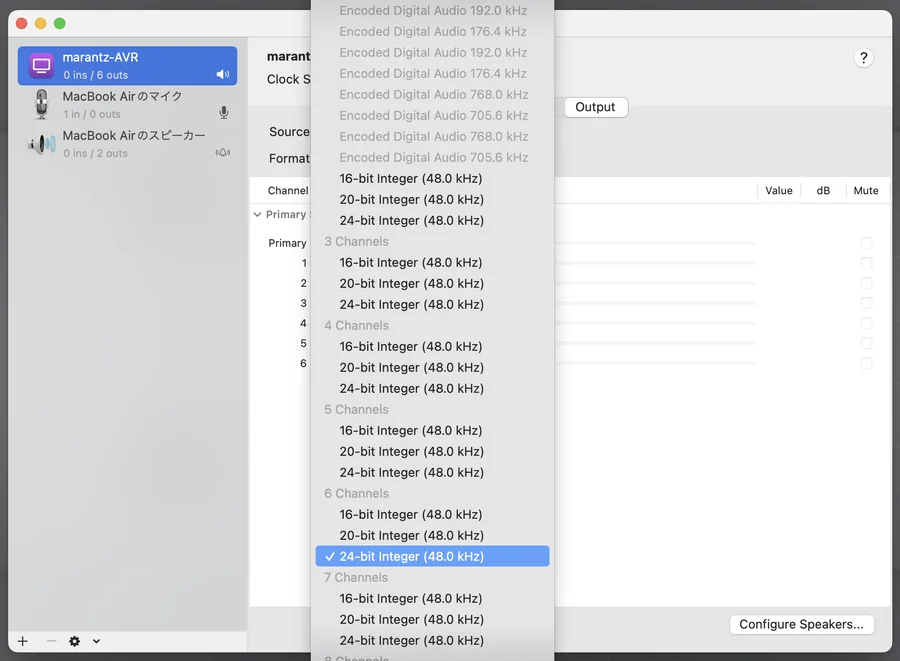
Under [Format] in the [Output] tab, select the settings that best match the output device and the content format. ・Channel Number: Select the number of speakers connected to your output device. ・Bit Depth: Select the largest possible bit depth. ・Sample Rate: Select the identical sample rate to the content.
- ※Note: HDMI ports on Apple Silicon (M1) Macs only support 48kHz output (April 2023).
- 07
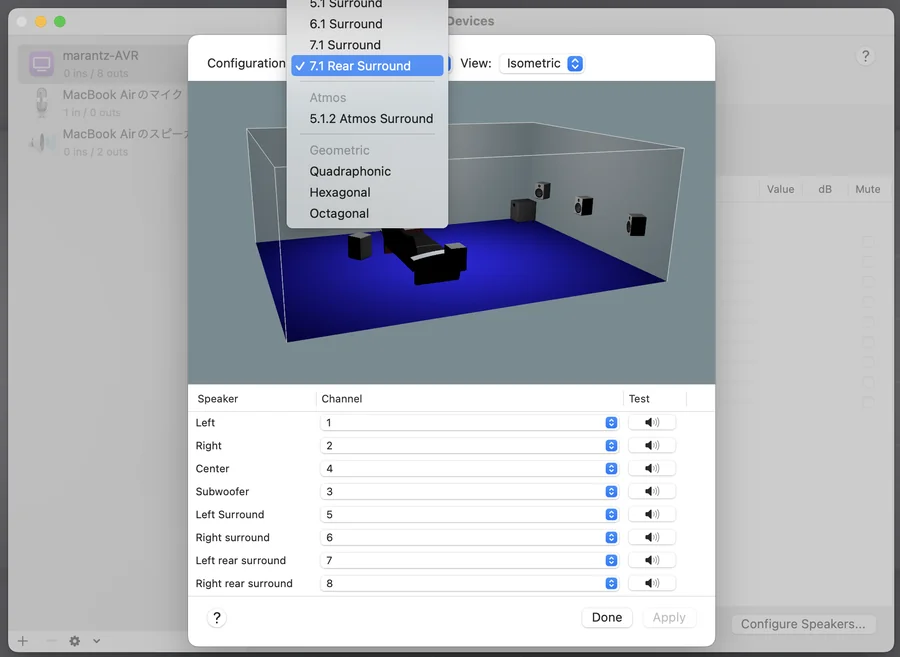
Click [Configure Speakers…] at the bottom right. From the [Configuration] pull-down menu, select “5.1 Rear Surround” for Auro 9.1ch content, or “7.1 Rear Surround” for Auro 11.1ch or 13.1ch content.
- 08
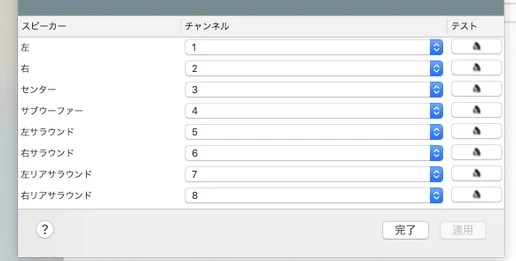
Make sure that the channel numbers shown in the bottom half of the window are in ascending order from 1. If a channel number is unselected or not in order, set the right channel from the pull-down menu.
- ※By default, channels 3 and 4 may be swapped.
- 09
Click [Apply] and complete the setup.
- 10
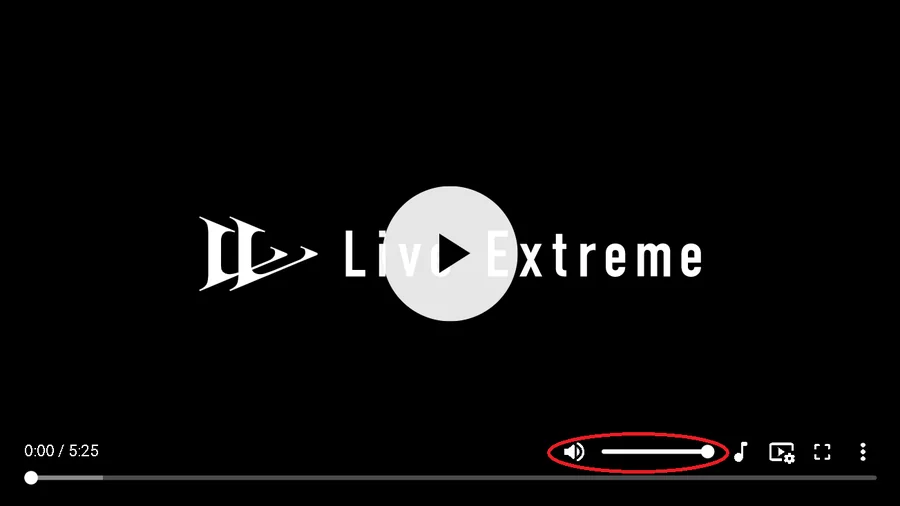
Set the player volume to the maximum level and enjoy the content.
- ※Adjust the volume on the AV receiver.
- 11
Check the input signal with the INFO button on the remote or on the AV receiver, and make sure that Auro-3D is recognized correctly.
- ※The images below are examples from DENON and Marantz products. “ACTIVE SPEAKERS” differs depending on your speaker configuration.
- ※How to operate the receiver differs by model. Please refer to its owner’s manual.
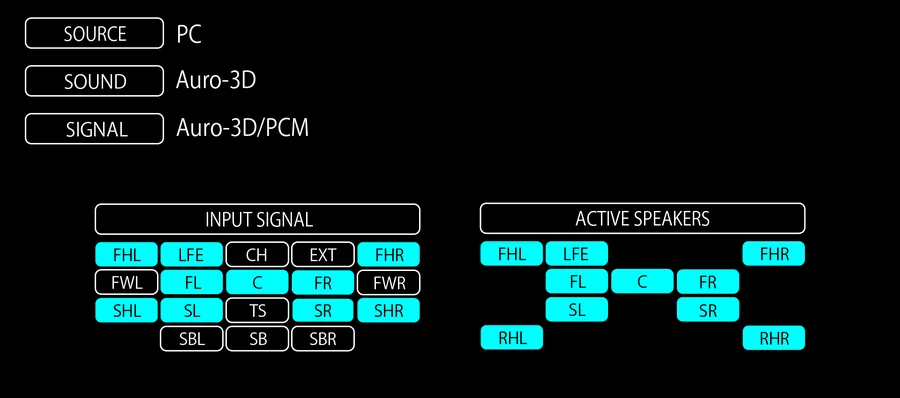
Auro 9.1ch 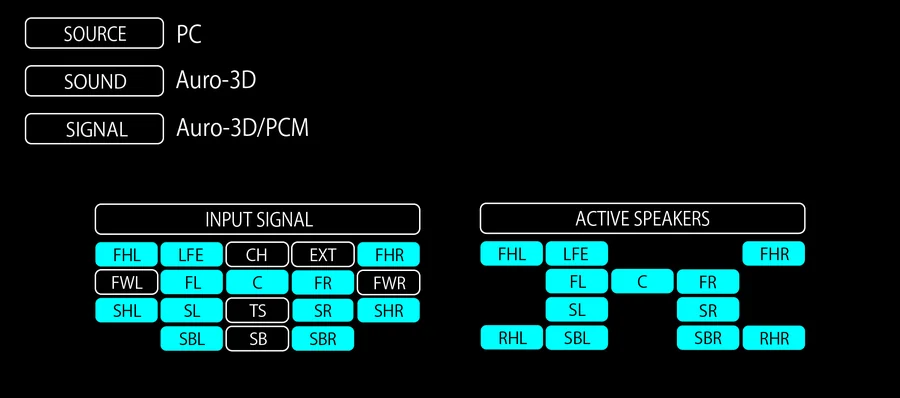
Auro 11.1ch 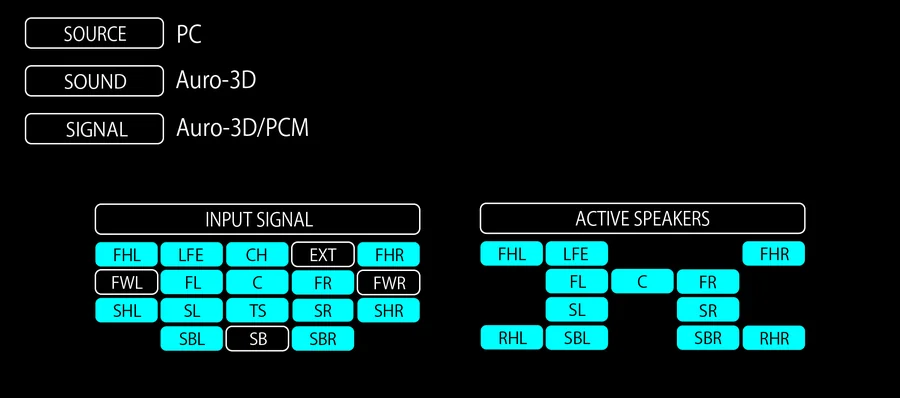
Auro 13.1ch
Surround / Auro-3D
- Windows 10
- Windows 11
- macOS