
SURROUND
Surround setup on Windows 10
- 01
Connect a PC to an HDMI supported device such as an AV receiver.
- 02
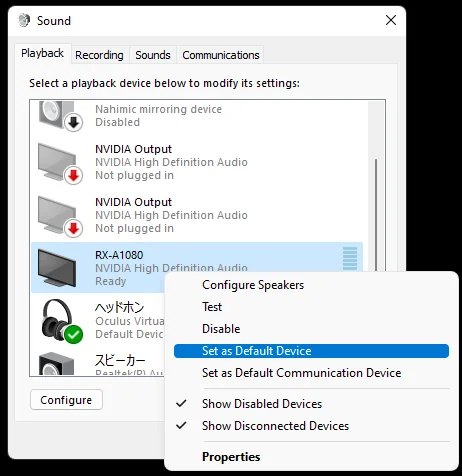
From the [Start] button, go to [Windows System] – [Control Panel]. Open [Sound] settings. Right-click on your device from (1) and select [Set as Default Device].
- 03
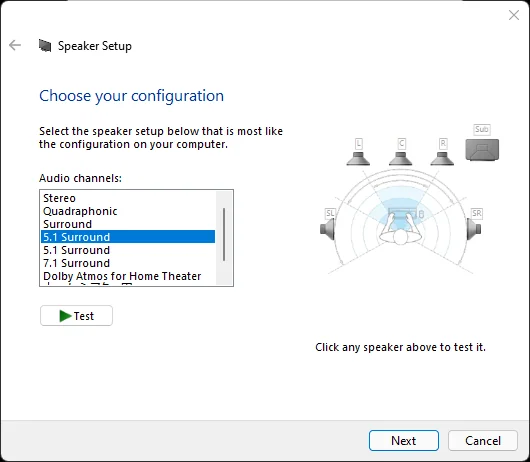
Click on [Configure] at the bottom left and select a surround sound setting, 5.1 Surround or 7.1 Surround, that best matches your system. Click [Next] and complete the speaker configuration setting.
- 04
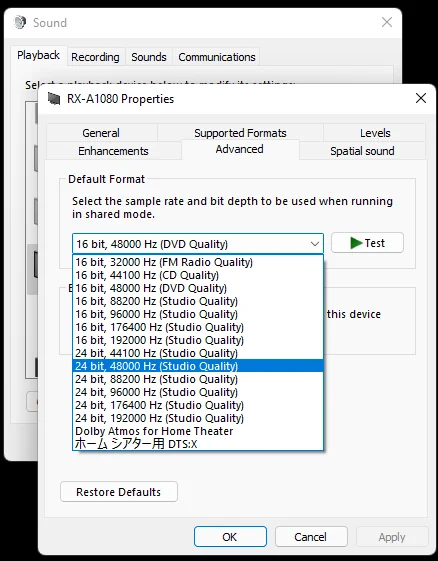
Go back to the [Sound Settings] window from (2) and click [Properties] at the bottom right. Under [Default Format] in the [Advanced] tab, select the sample rate that matches the content (and select the largest bit depth). For example, for 48kHz streams, select [24bit, 48000Hz] and click [OK].
- 05
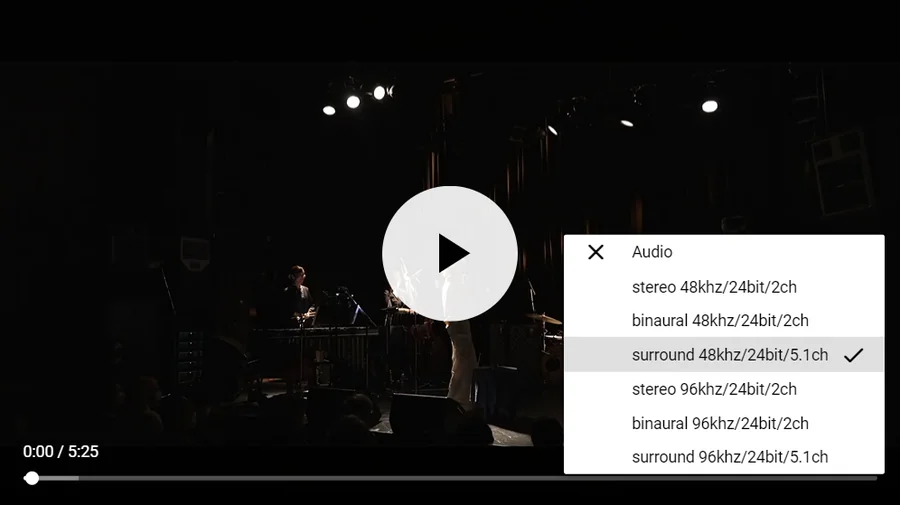
On the player page, click on the [♪] symbol in order to select a surround audio stream and enjoy the content.
Surround / 5.1ch / 7.1ch surround
- Windows 10
- macOS